The aim of this assignment is to develop a website using HTML for DSL 732. This assignment focuses on developing a simple HTML Based website for submitting our assignments and project. This assignment also involves understanding various tools used in the process and creating it using a domain. The process also involved documenting the process of creating a website from scratch or from a given template and uploading the file to the IIT Delhi server.
Software Used
1. Sublime Text Editor : This software was used to create and edit the HTML files. Different colors for different sections used in this software is a major advantage over Notepad.
2. WINSCP : This software was used to upload the website files from my computer to IIT Delhi server.
3. Handbrake : This software was used to reduce the size of videos without compromising with the quality.
Creating A Website
1. First I would like to thank Jay Dhariwal Sir for providing the template of website. The basic HTML template was downloaded and it was edited with sublime text editor to create the website for this assignment.
2. The basics of website development using HTML was taught in the class and many of the tags and instructions were learnt from w3schools.com.
3. Some of the important points used are :
a) All HTML documents must start with a document type declaration: '!DOCTYPE html'. It must only appear once, at the top of the page (before any HTML tags). This declaration is not case sensitive.
b) The HTML document itself begins with 'html' tag and ends with '/html'.
c) HTML headings are defined with the 'h1'to 'h6'tags. 'h1' defines the most important heading. 'h6' defines the least important heading.
d) HTML paragraphs are defined with the 'p'tag.
e) The 'br' tag defines a line break, and is an empty element without a closing tag.
f) The 'style' attribute is used to add styles to an element, such as color, font, size, and more.
g) The 'hr' tag defines a thematic break in an HTML page, and is most often displayed as a horizontal rule.The 'hr' element is used to separate content (or define a change) in an HTML page.
The HTML document written in Sublime text editor will look as the image below:
Inserting Images and Videos
1. HTML images are defined with the 'img' tag.The source file (src), alternative text (alt), width, and height are provided as attributes: 'img src="w3schools.jpg" alt="W3Schools.com" width="104" height="142"'
2. The 'img' tag is used to embed an image in an HTML page. The 'src' attribute specifies the path to the image to be displayed: There are two ways to specify the URL in the src attribute:
a) Absolute URL - Links to an external image that is hosted on another website. Example: src="https://www.w3schools.com/images/img_girl.jpg".
Note: External images might be under copyright. If you do not get permission to use it, you may be in violation of copyright laws. In addition, you cannot control external images; it can suddenly be removed or changed.
b) Relative URL - Links to an image that is hosted within the website. Here, the URL does not include the domain name. If the URL begins without a slash, it will be relative to the current page. Example: src="img_girl.jpg". If the URL begins with a slash, it will be relative to the domain. Example: src="/images/img_girl.jpg".
Tip: It is almost always best to use relative URLs. They will not break if you change domain.
3. The 'img' tag should also contain the width and height attributes, which specifies the width and height of the image (in pixels).
4. The required alt attribute for the 'img' tag specifies an alternate text for an image, if the image for some reason cannot be displayed. This can be due to slow connection, or an error in the src attribute, or if the user uses a screen reader.
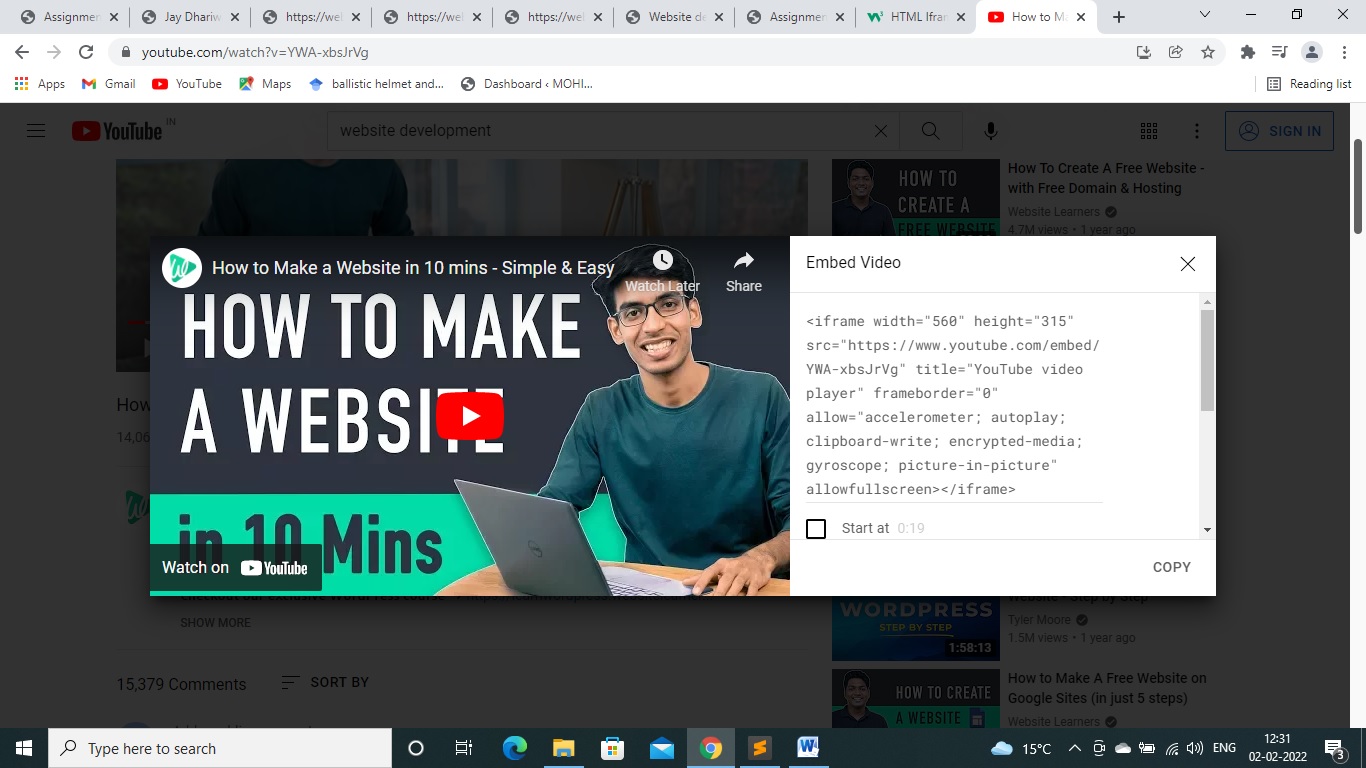
5. If we want to add any video to our webpage from youtube, we can run the video on youtube and go to the 'share' option and choose 'Embed' option. This will show something like the image below
We have to copy the code ' iframe width="560" height="315" src="https://www.youtube.com/embed/YWA-xbsJrVg" title="YouTube video player" frameborder="0" allow="accelerometer; autoplay; clipboard-write; encrypted-media; gyroscope; picture-in-picture" allowfullscreen>' and directly paste it into our html file and the video will be incorporated in our webpage.
I have incorporated the same video for demo purpose.
6. If we want to use a video present in my computer and upload it on my website, then the tag used is 'video'. The 'controls' attribute adds video controls, like play, pause, and volume. It is a good idea to always include width and height attributes. If height and width are not set, the page might flicker while the video loads. The 'source' element allows you to specify alternative video files which the browser may choose from. The browser will use the first recognized format.
Compressing Videos and Images
When we are adding any image or video from a website or youtube, we don't have to worry about the space it is taking on the server because it is almost negligible. But when we have to upload the image or video from our local strorage to server storage, we need to keep in mind the space it is utilising. Thus, we need to compress the images and videos without compromising with their qualities.
Compressing Videos
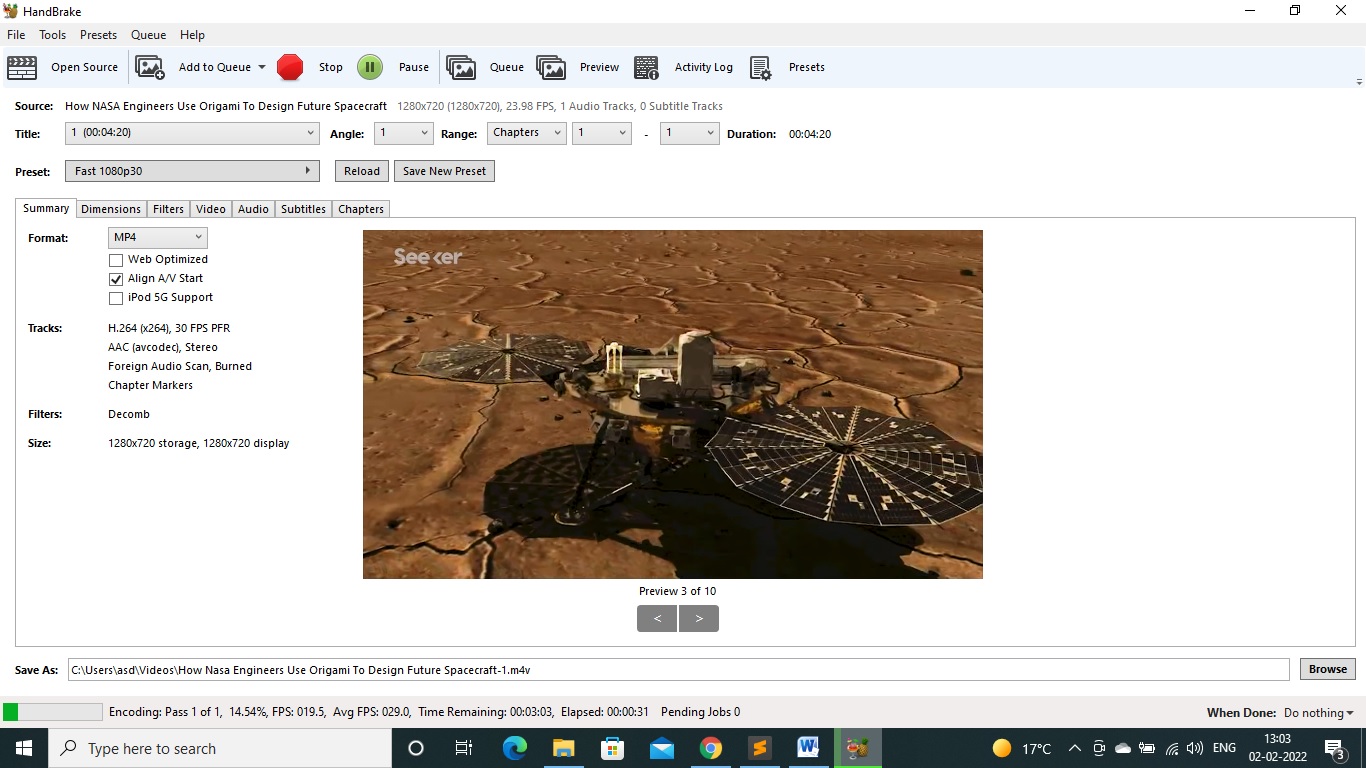
The software I have used for compressing videos is Handbrake. The interface looks like the image shown below
Images can be compressed easily online.
Uploading the Website to IITD server
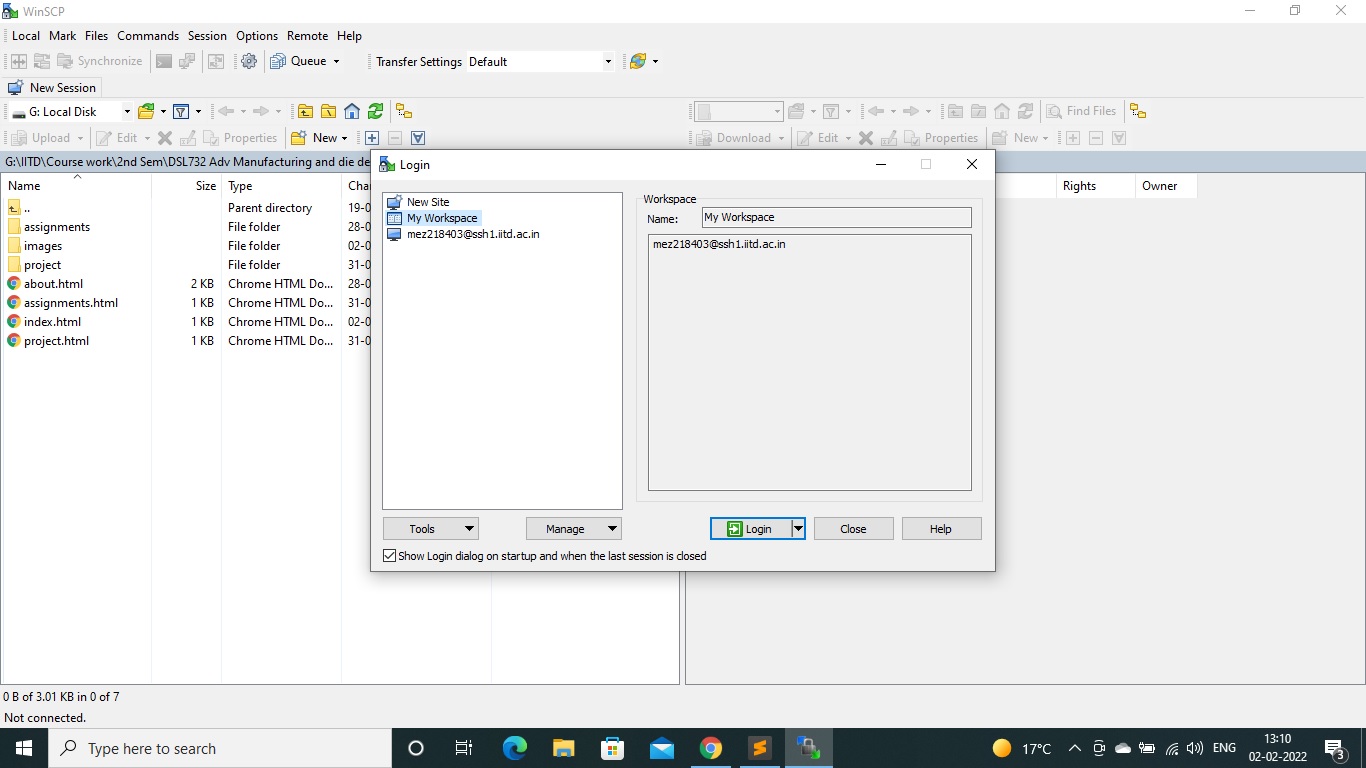
WinSCP software was installed for uploading the files on IITD server using institute id and password. Once we install the software, it will ask for login. We need to mention the details as shown in the image and use our institute id and password for login
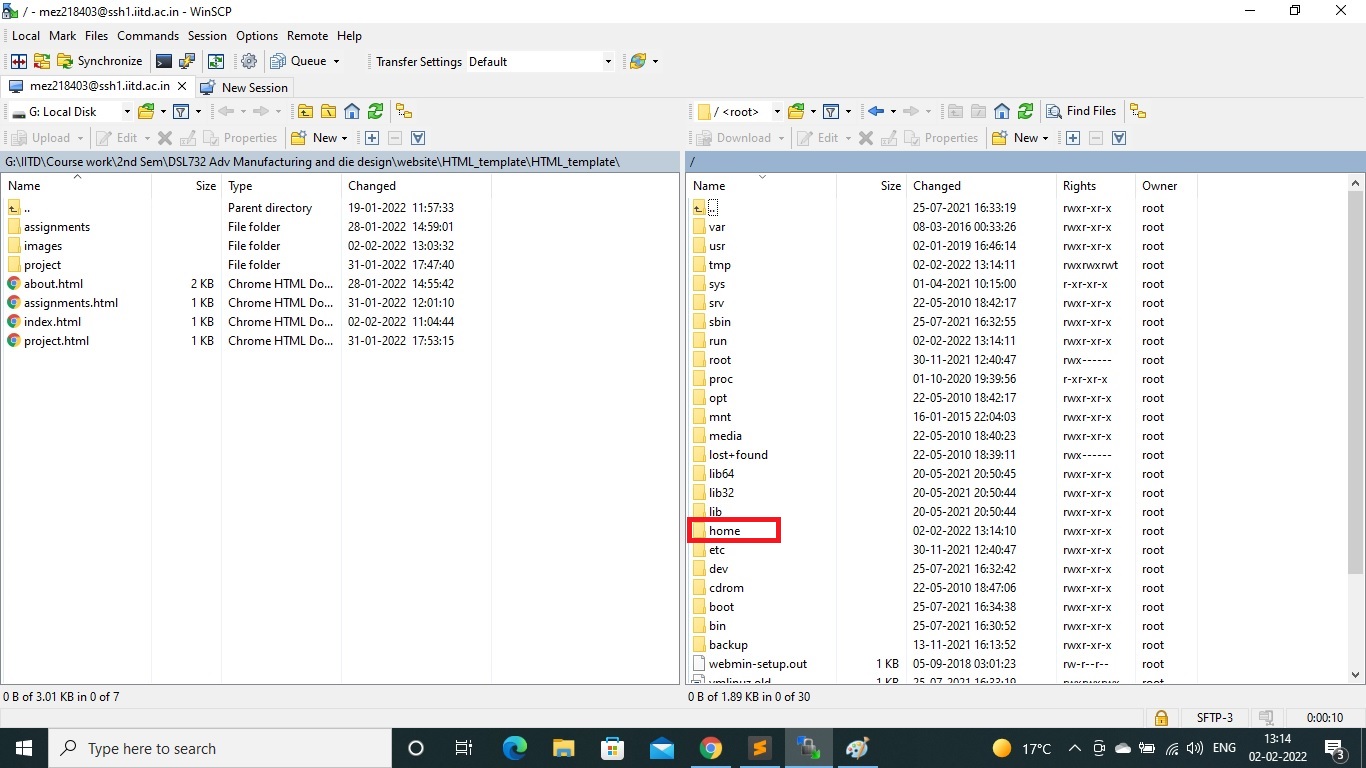
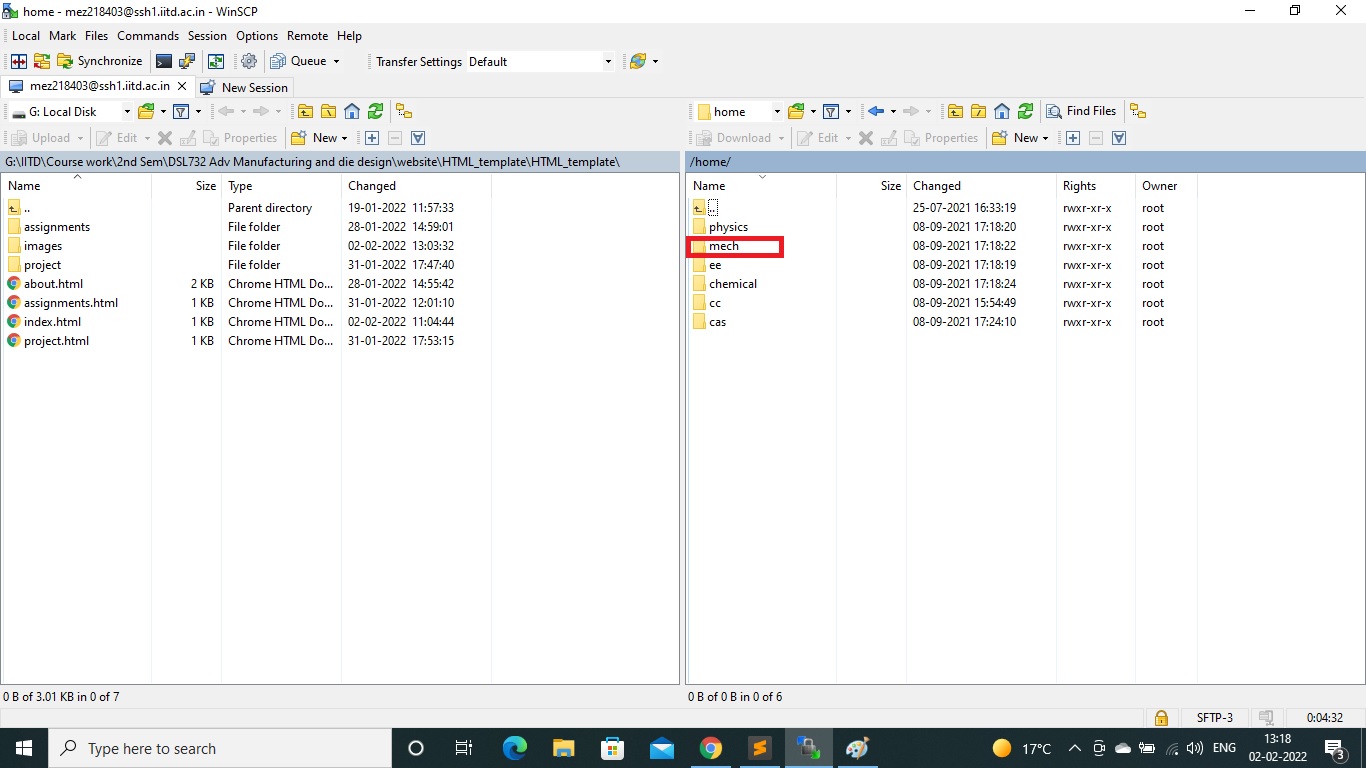
Once we login, WinSCP had two windows , the left one shows the system files and the right shows the files on iitd server. The right side will be showing the 'root' folder, we need to select 'home' folder.
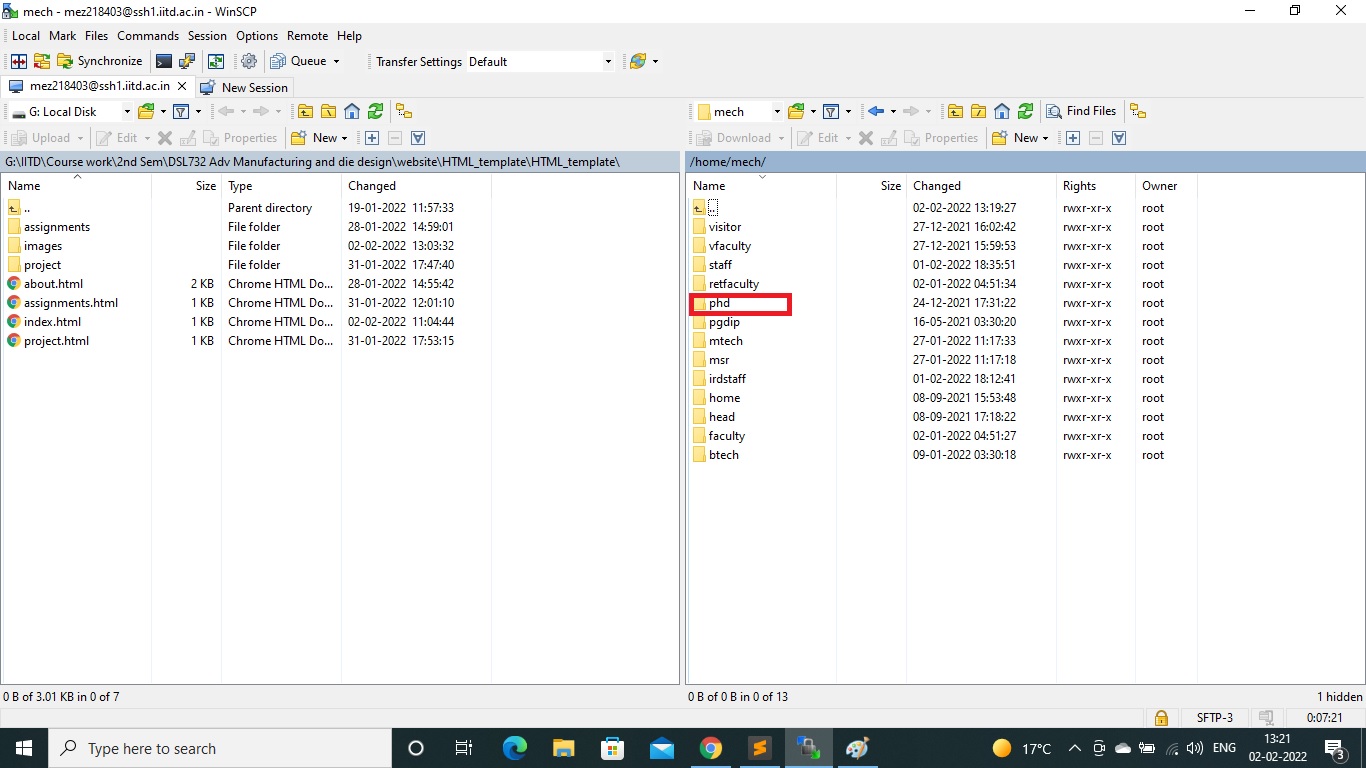
Then we need to select our respective department.
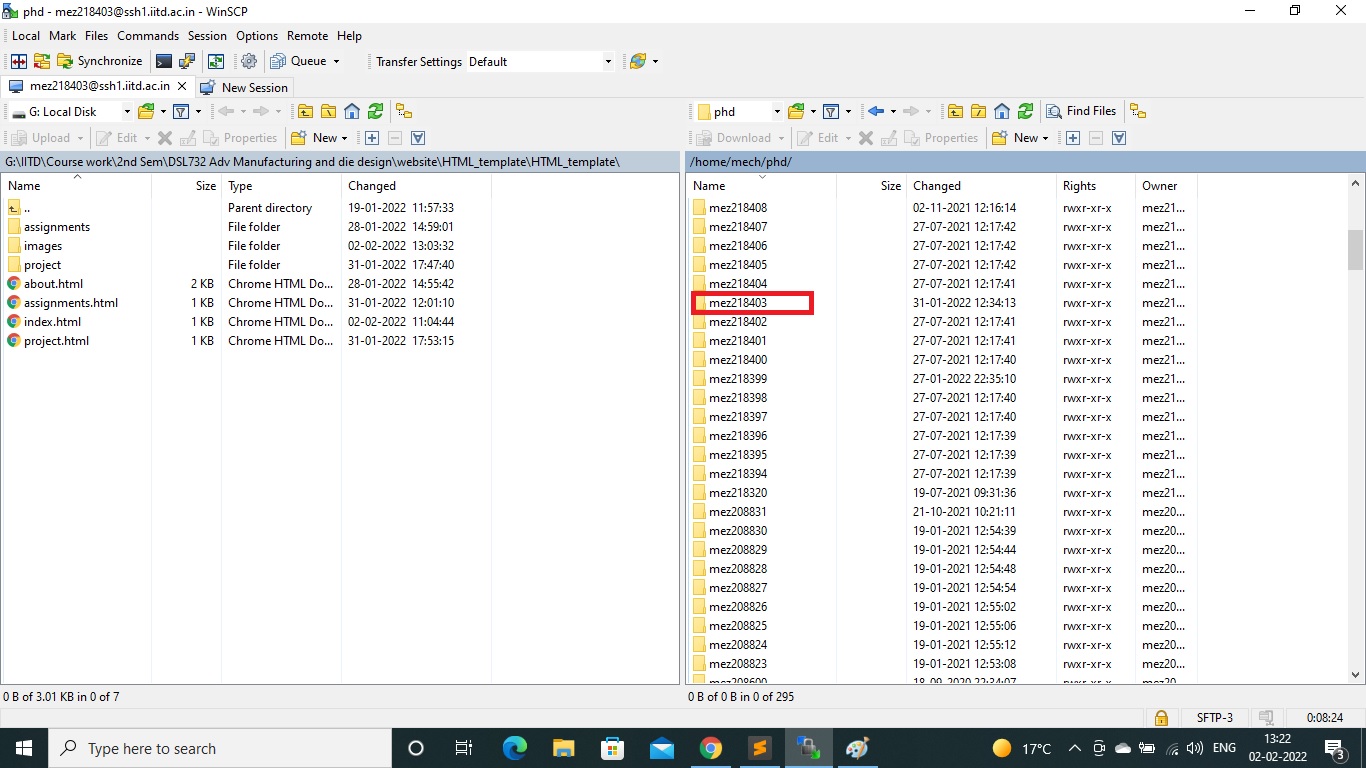
We need to select our category
We need to select our entry number
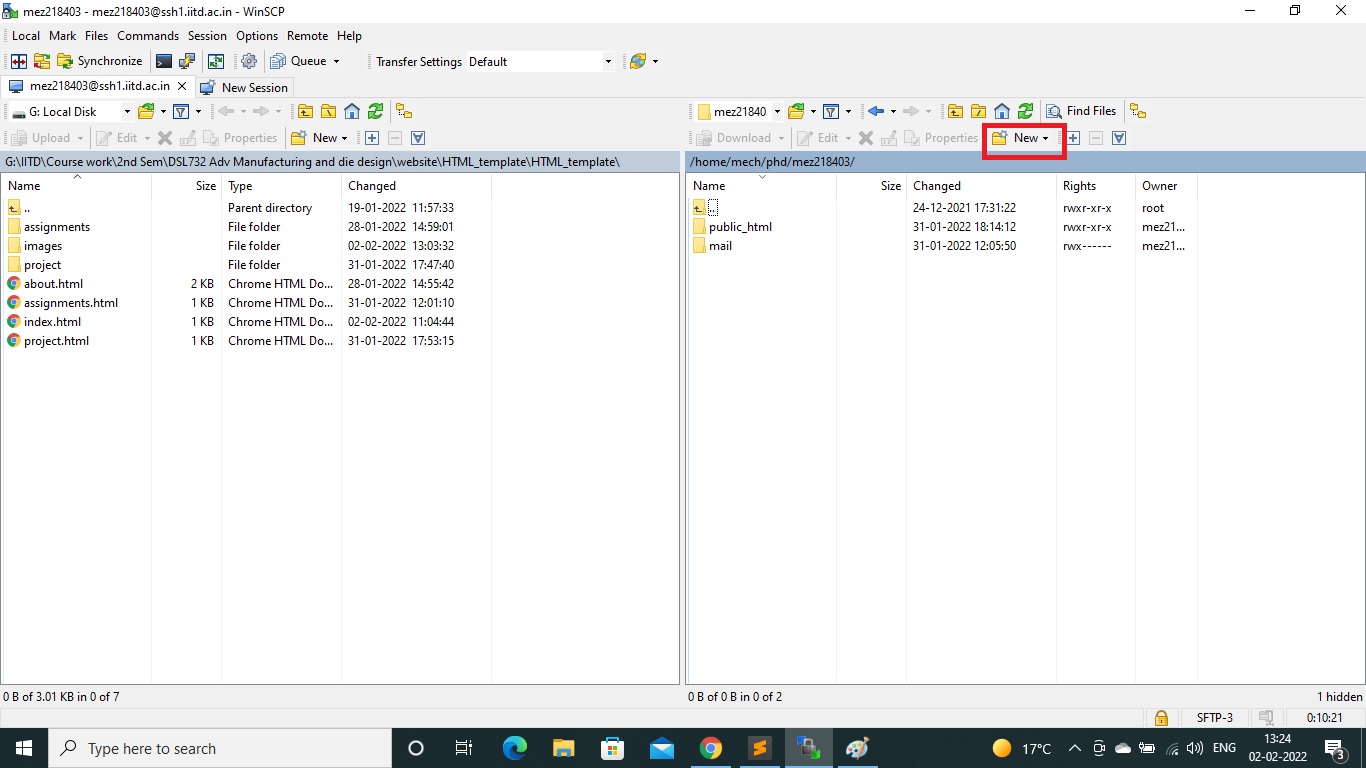
Create a new folder from the option shown below with a name 'public_html' or 'private_html depending upon the course.
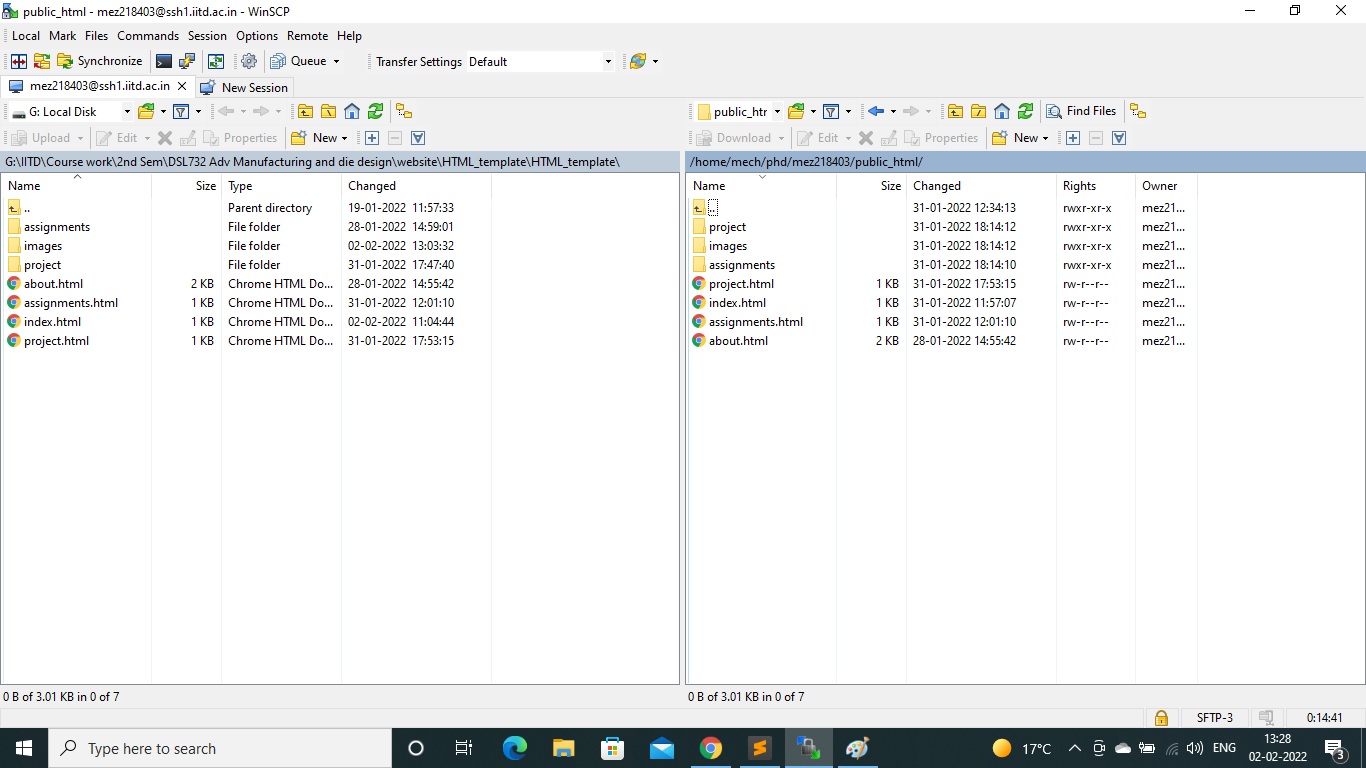
Finally copy all the files from your computer to the iitd server. It should include all the images and videos and every file used for making the website. This is how the files will be transferred to iitd server
We can access the website using URL : https://web.iitd.ac.in/~mez218403/